
Set up an initial alert
- Open Settings > Features > Assets and turn on Downtime alerts.
- Under Assets, choose All assets, Critical assets, or Selected assets. For selected assets, search and add the equipment you want to include.
- Under Downtime, choose Unplanned only for breakdowns, or All downtime to include planned offline periods.
- In Initial alert, enter the number of hours under After offline for. Use 0 for an alert due as soon as the asset goes offline.
- Under Notify teams, search for a team and select it. You can select several teams. Select the × on a team’s chip to remove it, or Clear teams in the open menu to remove all selected teams.
- Select Save changes.
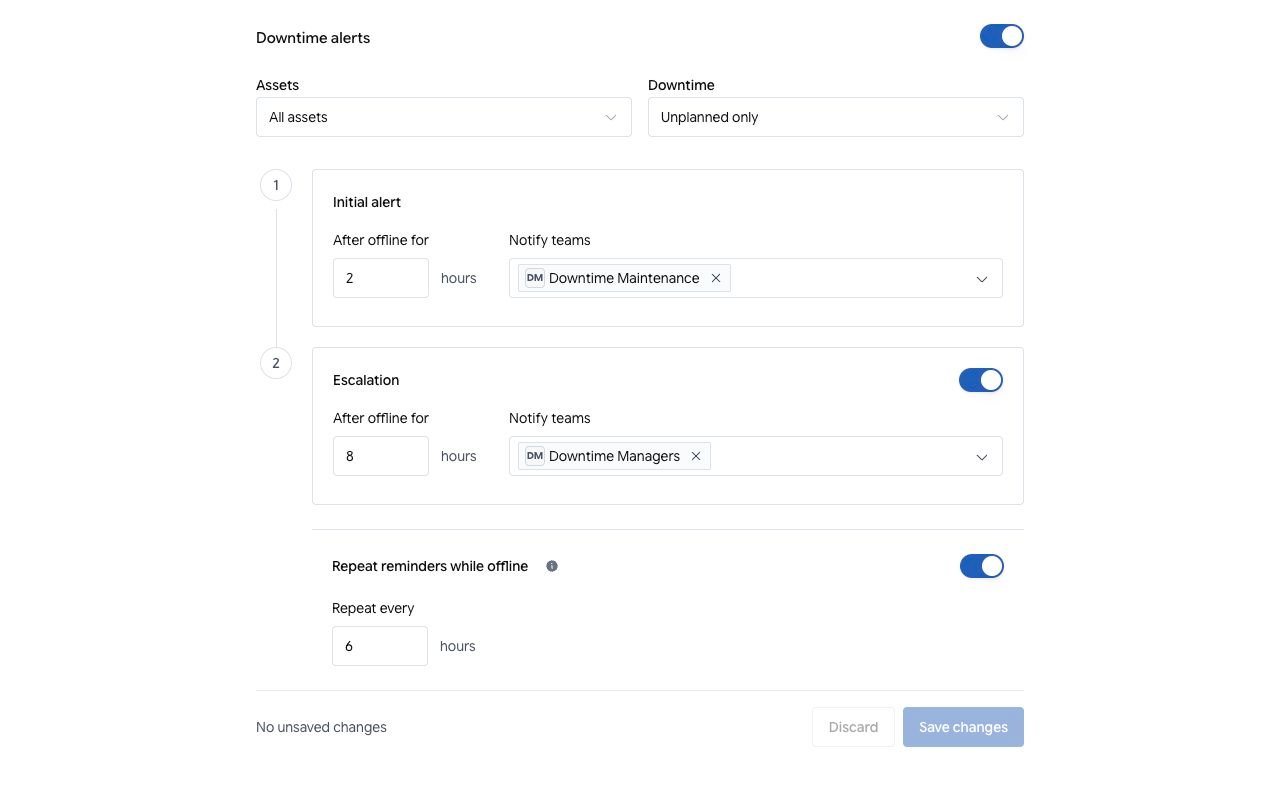
Example settings: initial alert after 2 hours, escalation at 8 total hours, and reminders every 6 hours. The screenshot uses demonstration teams.
Choose recipient teams
Type directly in Notify teams to search. The menu stays open while you select or deselect teams, and selected teams appear as removable chips in the field. Clearing the search shows the available teams again. Use the arrow keys and Enter to select, Escape to close the menu, and Backspace in an empty search field to remove the last selection.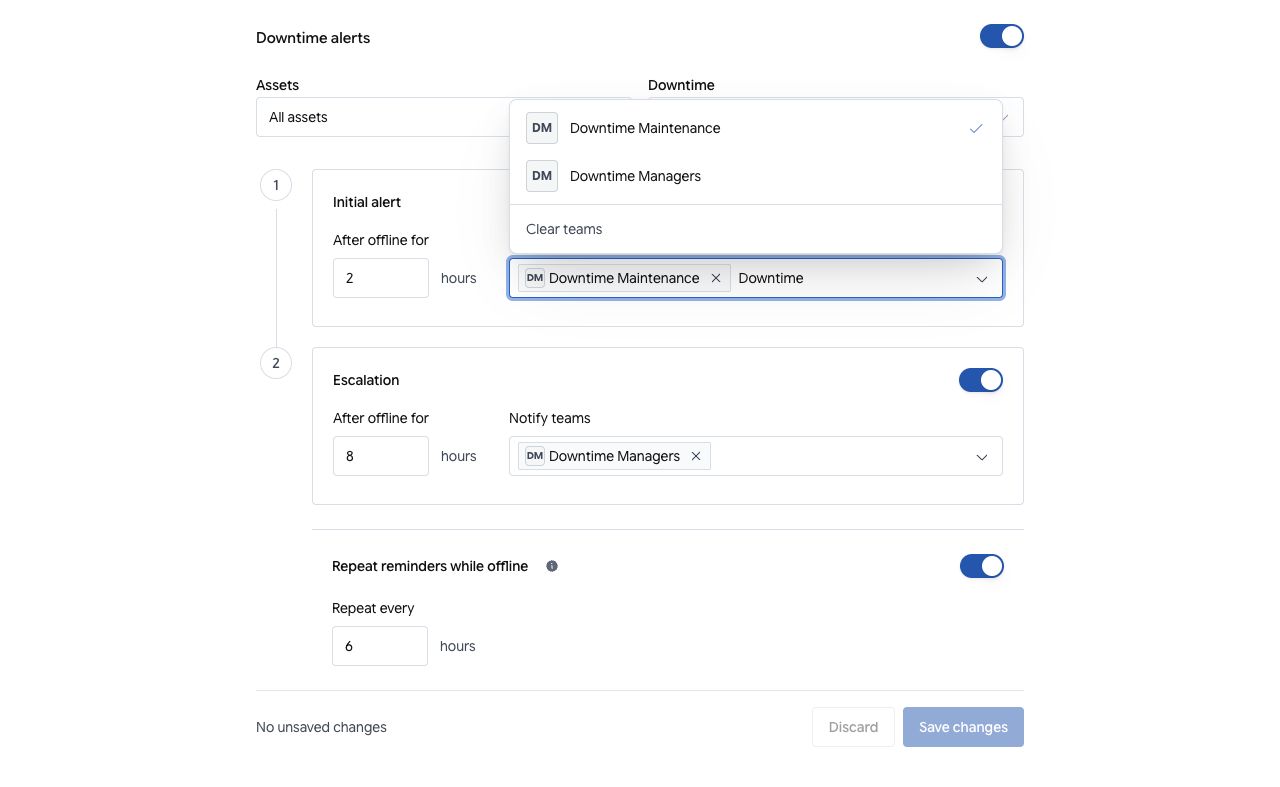
Type in Notify teams to search. A checkmark shows a selected team; the × on its chip removes it.
Escalate a longer outage
- Turn on Escalation.
- Enter a time later than the initial alert.
- Choose the teams to notify at that point.
- Select Save changes.
Repeat reminders
Turn on Repeat reminders while offline, enter an interval under Repeat every, then save. Reminders start one interval after the initial alert. After escalation, reminders go to both the initial and escalation teams. For the settings shown above:
When escalation and a reminder are due together, each person receives one combined alert. Canary checks for due alerts once a minute; delivery can follow the threshold rather than occur at the exact second. If checks are delayed, Canary sends the current alert instead of a backlog of missed reminders.
Where alerts arrive
Eligible alerts appear in Canary’s Inbox. Email and mobile push follow each person’s notification preferences and pause settings.- In the web app, review Settings > Notifications > Assets.
- In the mobile app, open My Account > Notification Settings > Assets. Enable phone permission and the Push Notifications preference to receive phone alerts.
- Email uses a five-minute unread delay. Reading or archiving the alert before email delivery stops that email.