
Enable notifications
You need the Canary app on a physical iPhone or Android phone, an internet connection, and a signed-in account.- From Overview, tap your profile picture to open My Account.
- Under Account Settings, open Notification Settings.
- Tap Enable push notifications and allow notifications when your phone asks.
- Confirm that the page says push notifications are enabled on this device.
- Open the relevant notification type and turn on the Push Notifications options you want.
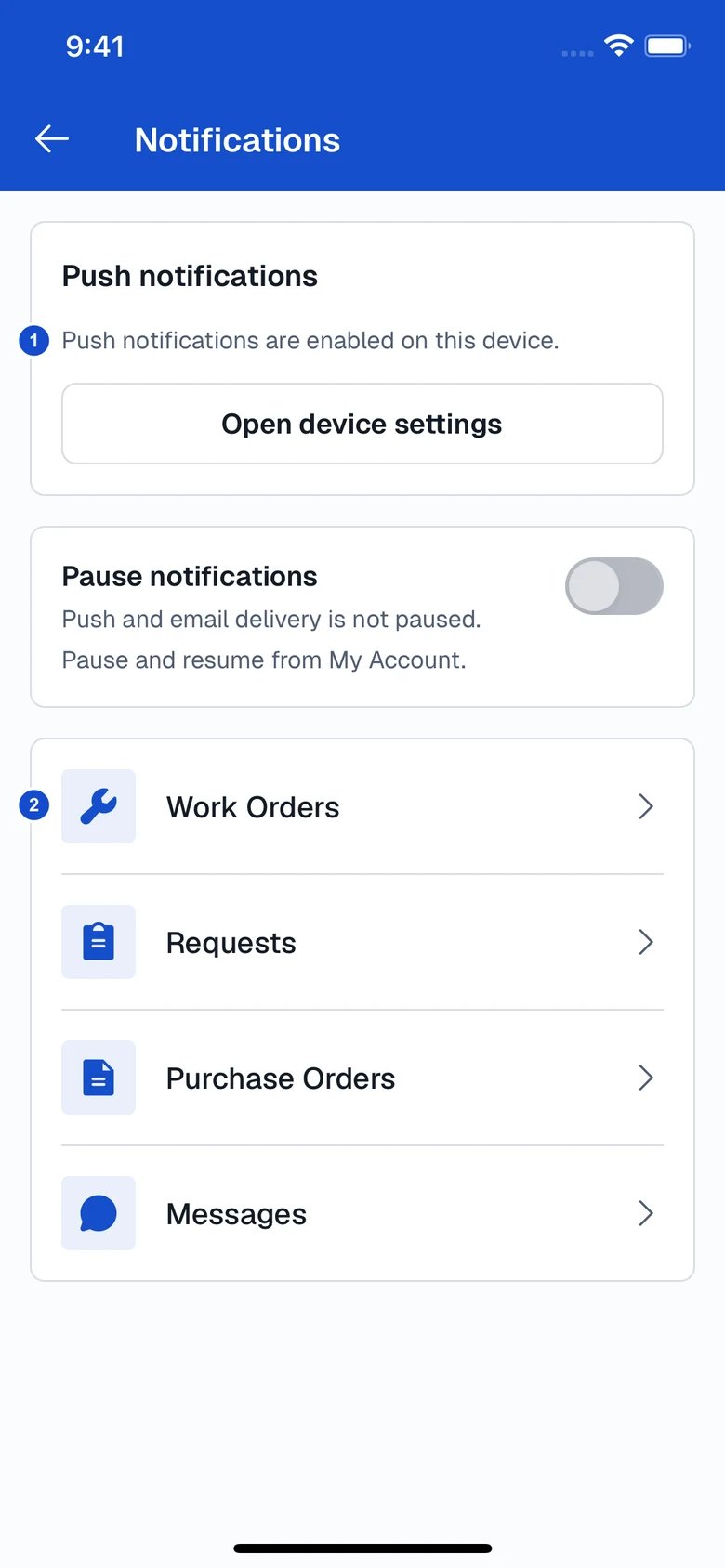
iPhone example: confirm device permission, then choose the activity you want to manage.
The steps use English button names. The app’s labels and guidance follow the language selected in My Account > Language. Your phone’s permission prompt follows the phone’s language settings.
Choose useful updates
In Notification Settings, select the type of activity you want to manage. The options available depend on your role and access.
For a focused starting point, enable assignments and overdue work for yourself, plus mentions. Team leads may also want updates for work assigned to their team. Review email separately: enabling push does not automatically enable email.
Example: alerts for work assigned to you
- Open Work Orders > Push Notifications.
- Under Assigned to me, enable All assigned work orders.
- Enable Becomes overdue if you also want overdue reminders. Review comments and mentions below it.
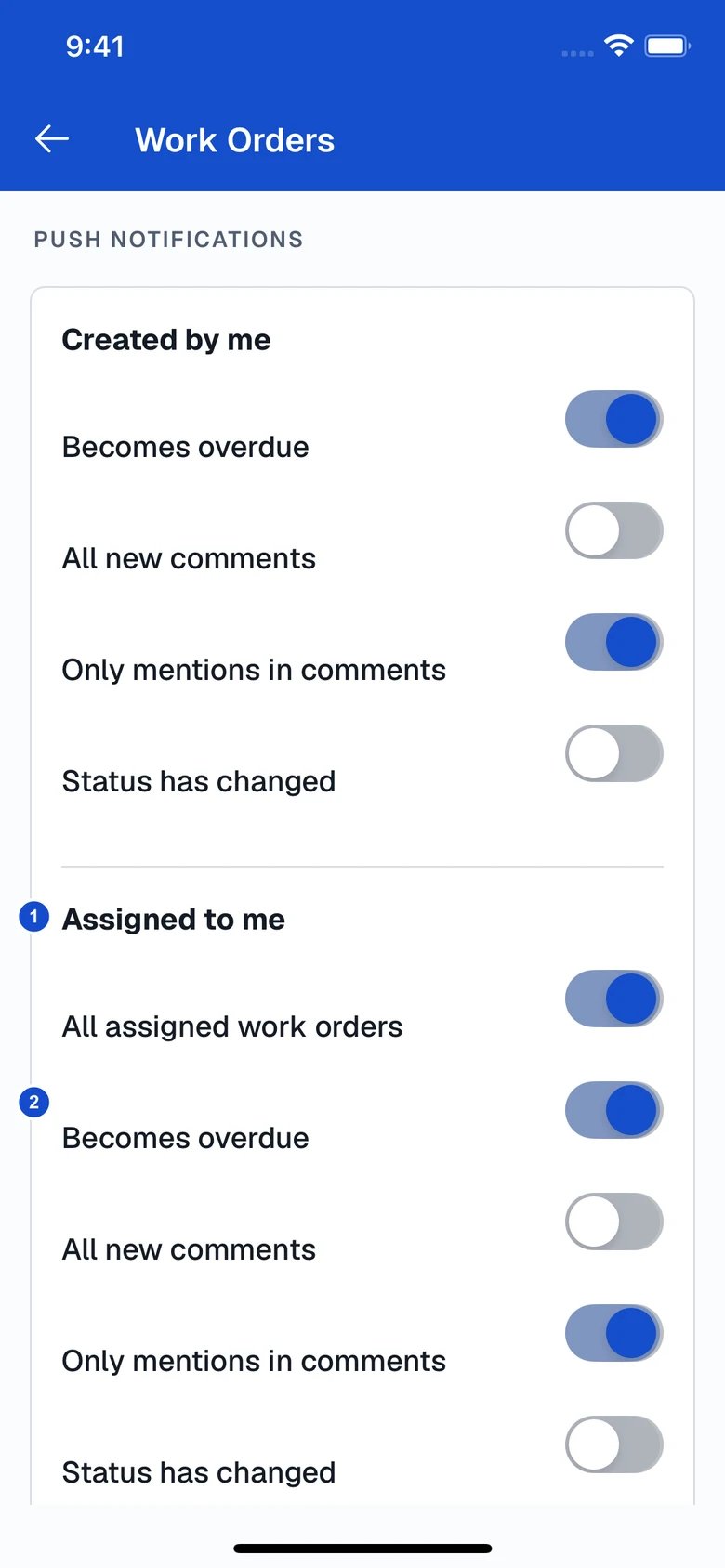
Example push preferences for a technician. Blue switches are enabled.
Pause and resume
- Open My Account and tap Pause Notifications.
- Choose 30 minutes, 1 hour, 4 hours, until tomorrow, or until next week.
- Check the displayed resume date and time.